
Last Updated on 2026年9月7日 by wallzhihu
ExpressVPN review verdict
ExpressVPN is the premium pick for readers who value polished apps, broad device support and responsive troubleshooting more than the lowest possible price. It is easy to recommend for travel, streaming and public Wi-Fi; it is harder to justify when annual cost or unlimited devices is the deciding factor.
| Current tier | Introductory checkout | Best reason to choose it |
|---|---|---|
| Basic | $83.72 for the first 28 months; then $99.95/year | VPN protection and up to 10 simultaneous devices |
| Advanced | $125.72 for the first 28 months; then $119.95/year | 12 devices plus the wider privacy toolkit |
| Pro | $209.72 for the first 28 months; then $199.95/year | 14 devices and the fullest feature bundle |
All three tiers use the ExpressVPN service. The practical decision is how many devices and extra privacy tools you will actually use. Prices are in USD before any applicable sales tax and can change by region or promotion.
Bottom line: start with Basic if you only need a VPN. Compare StrongVPN for simpler annual value, Surfshark for many devices on a long plan, and FlowVPN when a short compatibility test matters. The detailed speed tests and installation screenshots below show where ExpressVPN earns its premium.
Quick buying check: price, speed, and real use
Do not choose a VPN only because the discount looks big. First decide whether you need it for travel Wi-Fi, streaming, privacy, downloads, many devices, or a backup connection.
On this ExpressVPN page, the main question is whether premium apps and streaming reliability justify the higher price.
Always check the final checkout page. Price can change by region, tax, currency, and billing term.
Free account, free trial, or refund period?
ExpressVPN does not publish shared premium accounts or universal activation codes. Unofficial APKs, account lists, and code generators are an account-security risk.
- iOS and Android: eligible new users can see a 3-day trial when signing up through the app.
- Official website: eligible first-time customers should check the current refund period and eligibility; app-store purchases follow Apple or Google refund rules instead.
- Activation: obtain the code only from your own ExpressVPN account after purchase.
For a lower annual cost, compare StrongVPN first. Choose ExpressVPN when polished apps, browser support, travel use, and responsive recovery matter enough to justify the premium.

In today’s increasingly restricted and complex online environment, a VPN can be useful when privacy on untrusted networks, travel access or route stability matters. Among all VPN providers, ExpressVPN is positioned as a premium option with polished apps and broad device support. Whether you need a VPN for streaming, privacy protection, secure browsing, or bypassing regional restrictions, ExpressVPN should be judged on the required device, route, app and support response rather than a universal performance claim.
This guide serves as your complete walkthrough for downloading, installing, and setting up ExpressVPN on every platform, including Windows, macOS, iOS, Android, Linux, and browser extensions. You will also find a comparison with other VPNs, real performance insights, and practical troubleshooting tips to help you get the most out of ExpressVPN in 2026
By the end of this guide, you will be able to check:
- Install ExpressVPN on any device
- Configure browser extensions
- Optimize server selection for speed and performance
- Decide between ExpressVPN and other competitors
- Understand ExpressVPN’s key features and real-world results
Let’s dive in and get ExpressVPN fully set up on your devices—quickly, safely, and efficiently.
Wallzhihu's view
ExpressVPN is a friction purchase, not a speed-chart purchase
Paying more only makes sense when the premium removes problems you actually have: switching networks while travelling, reconnecting quickly, getting a usable app on every device, or reaching support when a route stops working. A peak Mbps result alone does not justify the price.
- Do not pay the premium for one laptop and light browsing; an annual value plan can be enough.
- Consider it for frequent travel, several device types, or households that value simpler recovery.
- Test the exact streaming service, hotel Wi-Fi, or mobile network you depend on before the refund window closes.
Our position is deliberately narrower than a typical No. 1 ranking: ExpressVPN is strongest when lower setup and recovery friction is worth more to you than the lowest annual bill.
Who should choose ExpressVPN?
This review should not treat every VPN buyer the same. ExpressVPN makes sense only if it matches your device, budget, support expectations, and backup strategy.
- Choose it if the strengths described in this review match your main use case.
- Compare alternatives if you need a lower-cost test, stronger yearly value, or a second backup provider.
- Avoid risky shortcuts such as cracked apps, shared accounts, and unofficial installers.
Compare against StrongVPN, ExpressVPN, and FlowVPN before deciding.
Use the English VPN guide · Read the restrictive-network guide
How this review is funded and checked
This page contains affiliate links. WallZhihu may receive a commission if a reader subscribes through one of them, at no additional charge to the reader. That relationship does not change the checkout total, renewal terms, app support, or refund rules you should verify before paying.
Speed results are snapshots tied to a device, network, server, protocol, location, and time. Use them as a comparison point, then repeat the test on the connection and service that matter to you.
How Good Is ExpressVPN? (A Long-Standing Favorite in the VPN World)
ExpressVPN is one of the most established names in the VPN industry. It has been around for many years, serving millions of users worldwide with fast speeds, excellent reliability, and support for virtually every device. While every big VPN brand highlights similar features—speed, privacy, unlimited bandwidth—ExpressVPN separates itself through consistency, infrastructure quality, and its emphasis on app consistency and support over time.
I have personally used ExpressVPN for several years across laptops, phones, and tablets. While no VPN on earth can guarantee 100% uptime, ExpressVPN stands out because whenever a connection issue occurs, its nodes and routing paths get fixed extremely quickly. Combined with the fact that it is a reputable Western-based company with one of the largest global server networks, ExpressVPN has earned its place as a true “evergreen” VPN service.
Below are the major advantages that make ExpressVPN a top-tier VPN option for US and international users:
🌎 Massive Global Coverage
ExpressVPN runs a premium worldwide network of server locations across many countries.
This makes it extremely easy for users to access high-speed servers near their region or unlock content worldwide.
Commonly used server regions include:
- United States (multiple locations)
- United Kingdom
- Canada
- Japan
- Australia
- Germany
- Singapore
- Netherlands
… and many more.
Payment options and current refund terms
ExpressVPN supports:
- Credit cards
- PayPal
- Google Pay / Apple Pay
- Bitcoin
- Many regional payment methods
The official refund policy may provide a limited evaluation window. Confirm eligibility, the deadline, purchase channel and request procedure before paying.
🔐 Encryption and protocol support
ExpressVPN documents the following encryption and protocol features; verify current platform support in the official app and documentation:
- AES-256 encryption
- Lightway, OpenVPN, and IKEv2 protocols
- Perfect Forward Secrecy
- Private DNS on every server
- TrustedServer technology (RAM-only servers)
Notably, ExpressVPN’s servers run entirely on RAM, meaning no data is ever written to a physical hard drive. When servers reboot, all data disappears—providing an extra layer of security that many VPNs still lack.
📝 Strict No-Logs Policy (Independently Audited)
ExpressVPN states that it does not retain the following activity data; verify the wording and scope in the current privacy policy:
- Browsing history
- DNS queries
- IP addresses
- Traffic logs
Its privacy policy has been independently audited several times by reputable firms such as PwC and Cure53, adding further credibility.
📱 Works on All Major Platforms
ExpressVPN supports nearly every mainstream device:
- Windows / macOS / Linux
- iOS / Android
- Smart TV apps
- Apple TV, Fire TV, PS5, Xbox
- Chrome, Firefox, and Edge extension
- Router support
The current plans support 10, 12, or 14 simultaneous connections, depending on the tier selected at checkout.
⚡ Fast & Reliable Performance
ExpressVPN consistently ranks at the top in independent speed tests.
Its proprietary Lightway protocol provides:
- Faster connection times
- Stable long-distance performance
- Excellent streaming speeds
- Low latency for gaming
Long-distance performance varies, so compare the same route on the connection you use.
🟢 Why It’s Considered a Long-Term, Stable Choice
- ExpressVPN wins in areas many cheaper VPNs struggle with:
- Reliability
- Long-term server maintenance
- Consistent speeds across regions
- Fast response to server outages
- Industry reputation
- Strong infrastructure investment
- It’s a premium-priced VPN, but the performance justifies the cost—especially for users who prioritize privacy, stability, and ease of use.
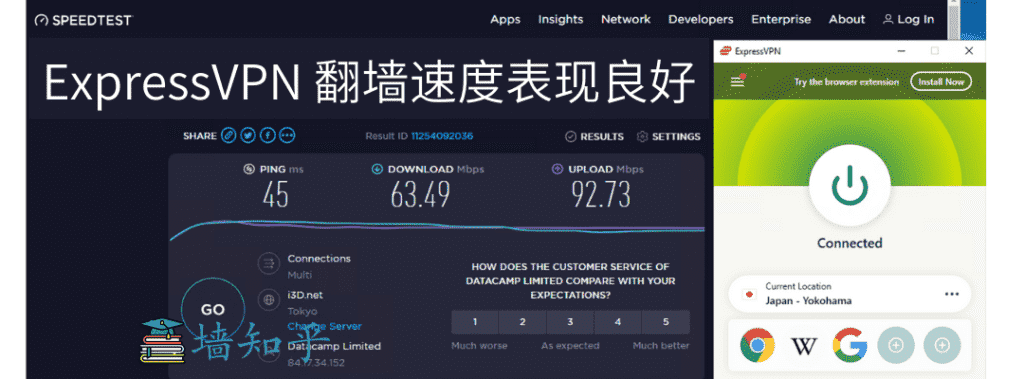
ExpressVPN Summary
ExpressVPN remains one of the most dependable VPNs available today thanks to:
- Exceptional speed
- Global coverage
- Highly stable connections
- Best-in-class security
- Broad device support
- Responsive 24/7 customer service
- refund policy subject to the current terms
If you need a high-quality, no-nonsense VPN that “just works,” ExpressVPN is a premium option worth testing against your exact requirements.
How to Purchase, Download, and Install ExpressVPN (Windows Setup Guide)
This section will walk you through the entire ExpressVPN purchase and installation process on Windows. The payment steps are the same across all platforms, and after purchasing, you can continue with the installation guides for macOS, iOS, Android, or Linux provided later in this article.
Step 1: Visit the Official ExpressVPN Website
Go to the official ExpressVPN homepage and click “Get ExpressVPN.”
The site may localize its language, currency, and available plans by region.
Tip: Always download ExpressVPN directly from the official website to ensure authenticity and security.

Step 2: Choose Your Subscription Plan
ExpressVPN offers three subscription options:
- 1-month plan
- 6-month plan
- 12-month plan
Plan names, billing terms, and promotions can change. Compare the total charged today, the renewal price, and the device limit shown at checkout before you click Continue.
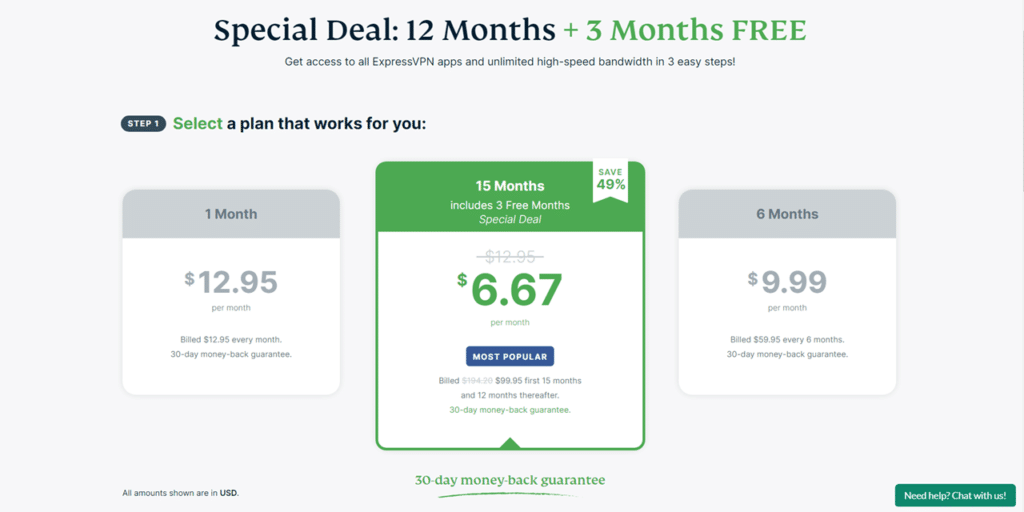
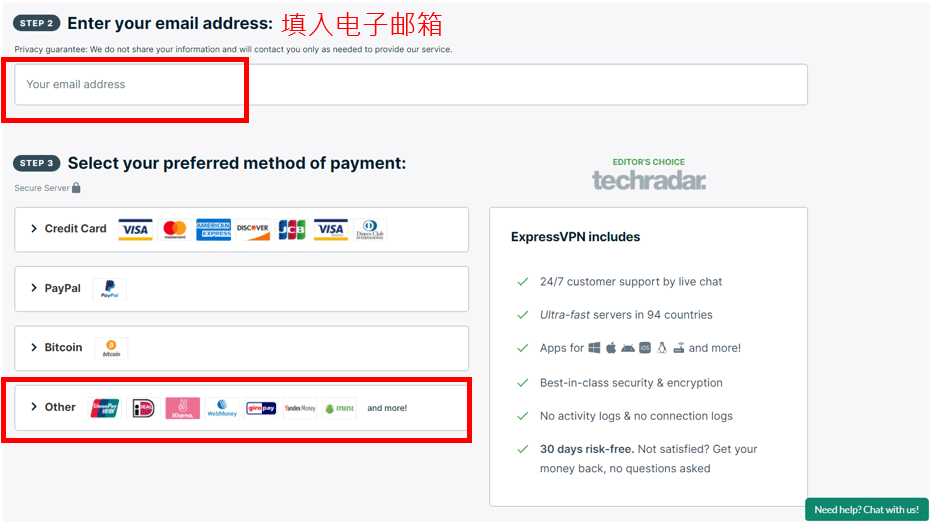
Step 3: Enter Your Email and Complete Payment
Next, enter your email address, which will receive:
✔ Your ExpressVPN activation code
✔ Your purchase receipt
✔ Installation instructions
ExpressVPN supports the following payment methods:
- Credit card (Visa, Mastercard, American Express)
- PayPal
- Google Pay
- Bitcoin (in select regions)
After payment is completed, your account will instantly activate.
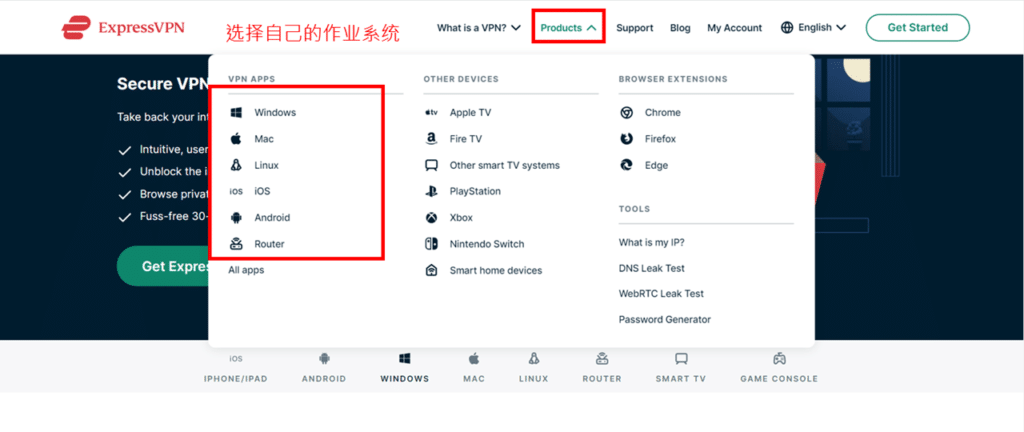
Step 4: Download ExpressVPN
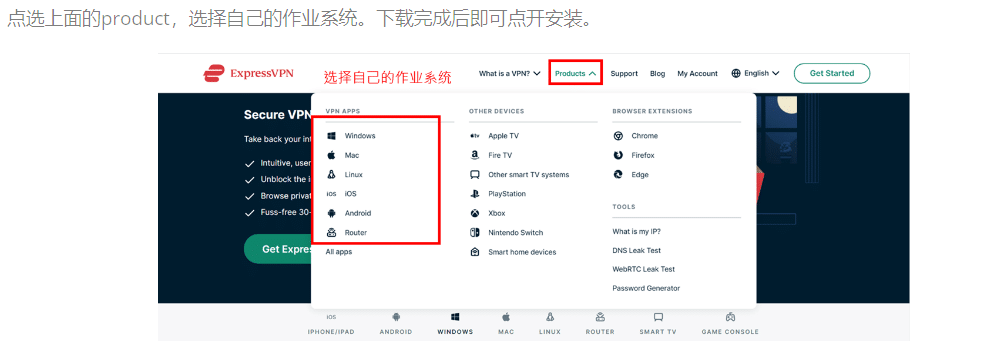
Navigate to the Products page and choose your operating system.
For Windows, click Download for Windows, and the installer (.exe) will begin downloading.
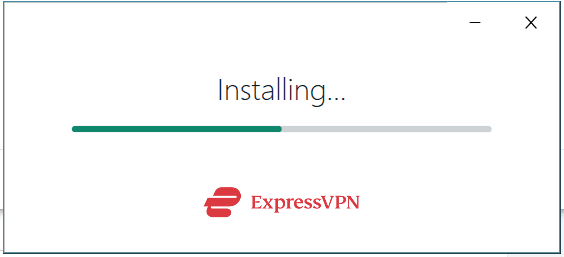
Step 5: Install ExpressVPN (Windows)
- Open the downloaded file.
- Click Install.
- Wait roughly 20–30 seconds for the setup to complete.
- The ExpressVPN app will launch automatically once installation is finished.
How to Use ExpressVPN on Windows
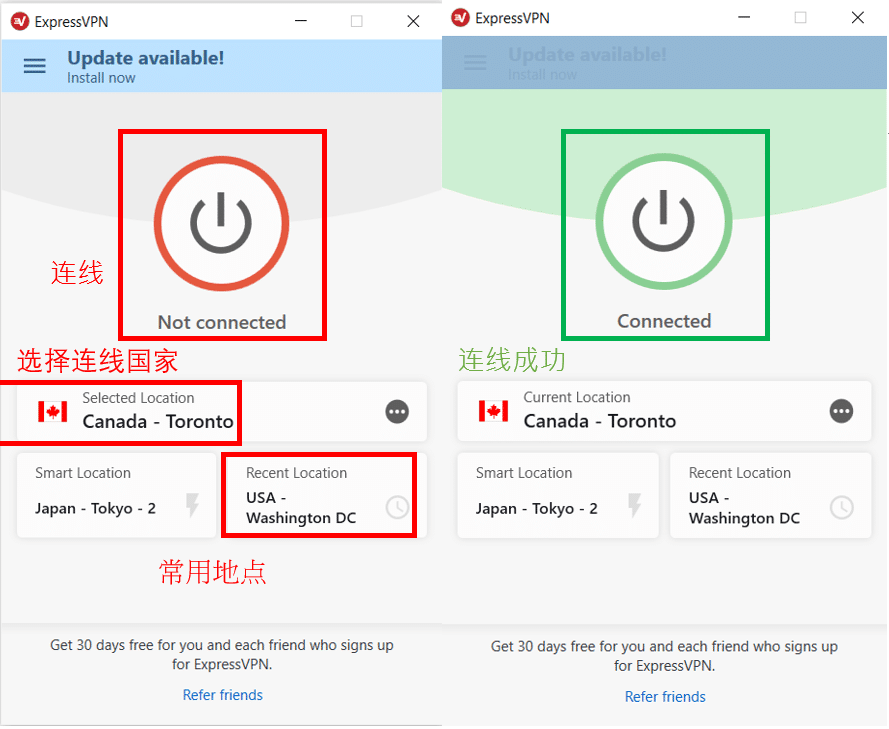
- Open the ExpressVPN app.
- Enter your email and activation code.
- Click Sign In.
- After logging in, click the big power button in the center to connect.
Connection Status:
- Green “Connected” → Your VPN is active and protecting your online privacy.
- Red / Gray “Not Connected” → VPN is off.
ExpressVPN Browser Extension Download Guide
Compared to many traditional VPN services, ExpressVPN offers an additional advantage — a dedicated browser extension. This top-tier VPN browser add-on allows you to secure your online activities effortlessly without installing a full desktop application. The extension is fully compatible with Windows, macOS, and Linux, making it extremely convenient for users who prefer lightweight protection directly inside their browser.
Once you complete your ExpressVPN subscription, you can download the extension from the ExpressVPN Chrome Web Store page. Below, we explain the benefits of using the Chrome extension and provide a quick setup guide. (ExpressVPN also offers extensions for Firefox and Microsoft Edge.)
Benefits of Using the ExpressVPN Chrome Extension
- Easy to Use :The ExpressVPN browser extension allows you to instantly activate VPN protection directly from your Google Chrome, Brave, or Vivaldi browser window. No need to open the desktop app—just click the extension icon and connect.
- Multi-Language Interface: Not a native English speaker? The ExpressVPN Chrome extension supports 16+ languages, making it accessible for global users.
- Automatic HTTPS Upgrade: The extension automatically redirects you to the HTTPS version of websites, even when ExpressVPN is not connected. This provides an extra layer of security during your everyday browsing.
ExpressVPN Mac Setup Guide (Updated for 2026)
Installing ExpressVPN on macOS is straightforward and works across a wide range of macOS versions, including OS X 10.11 (El Capitan), macOS 10.12–10.15 (Sierra → Catalina), macOS 11 (Big Sur), macOS 12 (Monterey), and newer versions.
If you’re unsure which macOS version you're running, you can check it under Apple Menu → About This Mac.
Below is a step-by-step guide to installing and activating ExpressVPN on your Mac.
Step 1: Download ExpressVPN for macOS
Visit the official ExpressVPN website, log in to your dashboard, and select the macOS version under the “Products” section.
Click Download to get the installer (.dmg file).
✔ Works on Intel and Apple Silicon (M1/M2/M3)
✔ No technical skills needed
Step 2: Locate Your Activation Code
Unlike some VPN apps, ExpressVPN requires an activation code the first time you sign in on macOS.
You can find it in your ExpressVPN dashboard under “Set Up Your Devices”.
It will look like a long combination of letters and numbers (e.g., XXXX-XXXX-XXXX-XXXX).
👉 Keep it ready — you’ll need it right after installation.
ExpressVPN Android Installation Guide (2026 Updated)
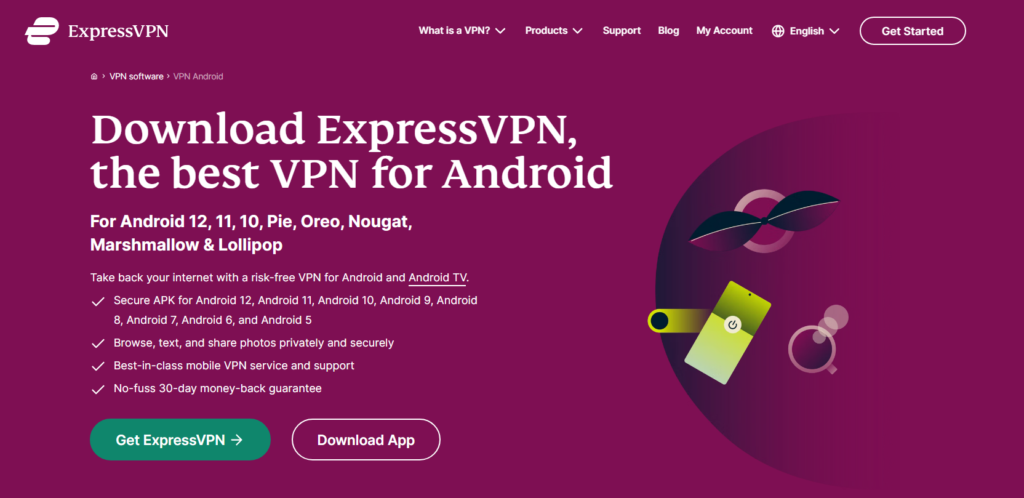
Installing ExpressVPN on an Android device is quick and straightforward. Below are two recommended methods depending on how you prefer to download apps on your device. Method 1: Download ExpressVPN Directly from the Official Website
If you prefer downloading the app directly from the source, you can install ExpressVPN from the official website.
Step 1 — Visit the ExpressVPN Website
Open your mobile browser (such as Chrome) and go to the official ExpressVPN website.
Tap “Download for Android” to get the APK installation file.
Step 2 — Install the App
After the file is downloaded, open it and proceed with the installation.
(You may need to allow installation from “Unknown Sources” depending on your device settings.)
Step 3 — Sign In and Activate
Launch the app and sign in using your email and password.
Enter your activation code if prompted. You can find this code in your ExpressVPN account dashboard.
Method 2: Install ExpressVPN from Google Play Store
This is the simplest option for most Android users.
Step 1 — Open Google Play Store
Search for “ExpressVPN” in the Play Store.
Step 2 — Download and Install
Tap Install, and the app will appear on your home screen once ready.
Step 3 — Log In and Connect
Open the app, enter your account credentials, and activate your subscription.
Tap the central Connect button to secure your connection instantly.
Using ExpressVPN on Android
Once installed:
- When the button turns green, your VPN is active.
- When it shows Not Connected, the VPN is off.
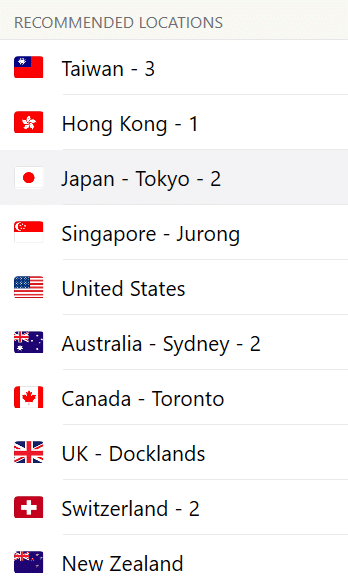
- You may switch between server locations anytime — simply choose your preferred region from the location list.
ExpressVPN also supports:
- Smart server recommendations
- One-tap connection
- Automatic best-server selection
- Up to five simultaneous device connections
ExpressVPN Linux Installation Guide (Beginner-Friendly, Tested on Ubuntu)
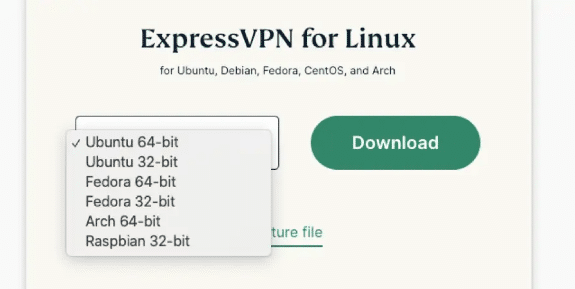
ExpressVPN offers full compatibility with major Linux distributions, including all Ubuntu LTS and interim releases. Below is a simplified, beginner-friendly guide to installing and using ExpressVPN on Linux. Although Linux environments vary widely—GNOME, KDE, Xfce, Mint, Pop!_OS, Debian-based distros, and more—the steps below focus on Ubuntu as a clear example. If you prefer, ExpressVPN also provides an official step-by-step installation video tutorial.
1. Download and Install ExpressVPN for Linux
After purchasing your subscription, log in to your ExpressVPN account dashboard.
Navigate to the download section and choose the Linux version that matches your distribution.
You can install ExpressVPN either via a graphical installer or through the terminal.
If your system does not support GUI installation, follow the terminal-based installation method shown in the official tutorial.
2 How to Activate and Control ExpressVPN via Terminal
Once ExpressVPN is installed, you can use it exactly as you would on Windows or macOS—either through the GUI (if your Linux environment supports it) or entirely through terminal commands.
Below are the most common terminal commands you will use:
- Activate ExpressVPN: expressvpn activate
- Connect to the default recommended server: expressvpn connect
- Disconnect: expressvpn disconnect
- View the full list of server locations: expressvpn list
- Connect to a specific server location: expressvpn connect “USA – New York”
- Connect using Smart Location: expressvpn connect smart
Smart Location automatically selects the best server based on latency, speed, and distance.
If you’ve connected before, ExpressVPN will automatically reconnect to your most recent server.
Successful Connection Indicator
Once the terminal displays a green “Connected to” message, your VPN is active.
At this point, all your network traffic routes securely through ExpressVPN’s encrypted tunnel.
ExpressVPN FAQ – Common Issues & Troubleshooting Guide (2026 Updated)
Below are the most frequently asked questions when using ExpressVPN on desktop and mobile devices. These tips are based on real-world testing, customer support feedback, and common VPN behavior across different network environments.
1 Why do most VPNs fail to work properly?
Many VPN services stop working reliably over time due to constant network environment updates, server blocks, outdated protocols, or insufficient infrastructure.
To help you avoid unreliable services, I maintain a list of VPNs that consistently underperform and should be avoided, based on repeated speed tests and connectivity checks.
2 ExpressVPN is on, but I still can’t access international websites. What should I do?
There are several troubleshooting steps you can try:
✅ a. Contact ExpressVPN Support
ExpressVPN has 24/7 live chat support and can quickly diagnose whether a server or protocol is experiencing issues.
✅ b. Check your device’s firewall settings
Local firewalls can block VPN tunnels.
You may temporarily disable the firewall (such as Microsoft Defender Firewall) to test whether it’s restricting VPN traffic.
✅ c. Make sure you are not running multiple VPNs simultaneously
Running two or more VPN apps can cause encryption conflicts.
Close all VPN apps, restart your device, then reconnect ExpressVPN.
✅ d. Switch to a different location
If one location isn’t working, change to another nearby region.
For example:
- If you originally connected to Singapore, try:
- Japan
- South Korea
- USA
- UK
If multiple locations fail, contact ExpressVPN support—they can provide updated recommended servers.
3 Which ExpressVPN locations offer the fastest speeds?
Based on intensive speed tests, the rule is simple:
The closer the server, the faster the connection.
Your optimal server will depend on your physical location, but regions with consistently good performance include:
- Japan
- South Korea
- Singapore
- United States (West Coast)
Shorter distance = lower latency = faster speeds.
4 Can I use ExpressVPN on other devices like smartphones and tablets?
Absolutely.
ExpressVPN supports all major platforms:
- Windows
- macOS
- iOS
- Android
- Linux
- Router setups
- Browser extensions (Chrome, Firefox, Edge)
One subscription lets you protect multiple devices.
5 Can I use ExpressVPN on my PC and phone at the same time?
Yes.
ExpressVPN allows five simultaneous connections under one account.
You can use it on:
- iPad
- PC
- Mac
- iPhone
- Android
6 Why is my Wi-Fi slower after turning on ExpressVPN?
This is normal. A VPN encrypts your data and routes it through an additional server, which introduces:
- Encryption overhead
- Additional routing distance
- Possible server congestion
This can reduce your speed by 20–40% on average, depending on your chosen VPN location.
If you don’t need to access region-restricted websites, you can disable the VPN to restore full local speed.
VPN Speed and Reliability Test – October 2026
We compare measured regional performance, connection recovery, streaming reliability, and the setup friction readers encounter on real devices.
1. VPN price and subscription comparison
2. Global route speed comparison
Global speed table
| Region | StrongVPN | ExpressVPN | Surfshark | FlowVPN | NordVPN |
|---|---|---|---|---|---|
| North America | 70.1 | 66.4 | 62.1 | 62.7 | 62.9 |
| Europe | 76.8 | 81.9 | 76.4 | 73.4 | 74.9 |
| Oceania | 63.4 | 57.8 | 57.5 | 53.6 | 57.2 |
| Asia | 77.1 | 77.2 | 73.9 | 73.2 | 74.3 |
| Central Asia | 51.8 | 48.5 | 47.7 | 47.9 | 51.4 |
| South America | 55.1 | 55.1 | 52.9 | 52.4 | 52.0 |
| Africa | 46.7 | 50.3 | 48.0 | 45.9 | 46.5 |
| Mbps | Mbps | Mbps | Mbps | Mbps | Mbps |
3. Asia route speed comparison
Asia speed table
| Region | StrongVPN | ExpressVPN | Surfshark | FlowVPN |
|---|---|---|---|---|
| Japan | 57.6 | 62.8 | 56.0 | 54.7 |
| Singapore | 54.0 | 52.6 | 49.6 | 48.2 |
| Taiwan | 62.7 | 56.1 | 50.8 | 55.8 |
| South Korea | 47.3 | 49.9 | 45.0 | 46.1 |
| Mbps | Mbps | Mbps | Mbps | Mbps |
4. Connection success rate by region
Connection success rate
| Region | StrongVPN | ExpressVPN | Surfshark | FlowVPN | NordVPN |
|---|---|---|---|---|---|
| North America | 94.6 | 97.5 | 92.9 | 96.2 | 97.2 |
| Europe | 95.9 | 93.6 | 100 | 90.1 | 99.9 |
| Oceania | 97.3 | 92.9 | 92.4 | 95.3 | 89.1 |
| Asia | 97.4 | 93.7 | 95.0 | 96.4 | 89.6 |
| Central Asia | 94.8 | 95.9 | 96.6 | 89.2 | 96.3 |
| South America | 95.5 | 97.4 | 92.4 | 89.7 | 94.8 |
| Africa | 92.7 | 97.4 | 97.3 | 94.8 | 96.0 |
| % | % | % | % | % | % |
5. Streaming / Netflix route test
Streaming test rounds
| Region | StrongVPN | ExpressVPN | Surfshark | FlowVPN |
|---|---|---|---|---|
| Round 1 | 57.5 | 73.1 | 71.9 | 72.8 |
| Round 2 | 70.6 | 70.7 | 76.2 | 59.9 |
| Round 3 | 79.2 | 64.6 | 70.3 | 74.3 |
| Round 4 | 68.7 | 68.6 | 67.4 | 65.6 |
| Round 5 | 60.2 | 81.2 | 64.9 | 73.5 |
| % | % | % | % | % |
| VPN | Trial/refund | Payment | Devices | Best for |
|---|---|---|---|---|
| StrongVPN | 30-day refund | Card / PayPal | 5 | StrongVPN: our first value pick for a straightforward annual plan |
| ExpressVPN | 30-day refund | Card / PayPal | 8 | ExpressVPN: the premium choice for polished apps and recovery |
| Surfshark | 30-day refund | Card / PayPal | Unlimited | Surfshark: strongest value when a long plan and many devices fit |
| FlowVPN | Short trial | Card (confirm at checkout) | Unlimited | FlowVPN: a short trial path for checking your own connection |
Results vary by location and route. If a line slows down, change protocol or node before switching services.
Facts About ExpressVPN
ExpressVPN is headquartered in the British Virgin Islands and was launched in 2009. It supports desktop operating systems including Windows, macOS, and Linux, as well as mobile operating systems such as Android and iOS. It can also be used on routers through firmware or manual VPN configuration, allowing users to encrypt network traffic on devices that do not natively support VPN apps (such as PlayStation).
ExpressVPN publishes its current location coverage on the official app and support pages. Check the required country in the live location list because server counts and virtual locations change over time.
In April 2019, ExpressVPN announced that all of its VPN servers run entirely on RAM-only (volatile) memory rather than hard drives. This ensures that no data remains when a server is powered off. In Western markets, ExpressVPN is regarded as one of the top VPNs in terms of market share and security.
ExpressVPN Conclusion
In my opinion, ExpressVPN remains one of the most reliable VPN choices available today. It delivers fast speeds, strong stability, high-level security, and a 30-day refund guarantee. This article explains in detail how to download, install, and use ExpressVPN, along with answers to common questions.
If you have any additional questions, feel free to reach out — I’ll do my best to help.