
Last Updated on 2026年8月21日 by wallzhihu
Surfshark buying decision
Surfshark is strongest as a many-device comparison. A low monthly equivalent can require a long upfront term, so record the total today and renewal separately.
| Order | Provider | Best fit on this page |
|---|---|---|
| 1 | StrongVPN | One-year value comparison |
| 2 | ExpressVPN | Premium apps and support |
| 3 | Surfshark | Many-device and longer-term fit |
| 4 | FlowVPN | Short compatibility test |
Unlimited connections do not guarantee that every app, router, account or streaming service will behave the same. Test the actual platforms you use.
Surfshark is most relevant when one subscription must cover many phones, computers and televisions. Its unlimited-device policy is useful, but the first charge, renewal, app support and service compatibility still need separate checks.
This Surfshark VPN Setup Guide will walk you through everything you need to get started, including how to claim the latest Surfshark discount, how to install the app on macOS, Windows, Android, iOS, and Linux, and what performance you can expect based on real-world tests. Whether you’re looking for enhanced privacy, streaming access, or stable encryption during daily use, Surfshark offers an excellent balance of speed, security, and affordability.
In this guide, you'll find:
- Why Surfshark is recommended (including unlimited device connections)
- Surfshark vs. ExpressVPN (quick comparison overview)
- Step-by-step Surfshark purchase and setup walkthrough
- Full installation tutorials for macOS, Windows, Android, iOS, and Linux
- Surfshark performance evaluation (speed test + stability review)
- Pros, cons, and frequently asked questions
- Final summary on whether Surfshark is worth it in 2026
- Additional company information for users who want deeper insight
With that, let’s begin by exploring why Surfshark has become one of the most popular VPN choices among users who prioritize both value and performance.
Who should choose Surfshark?
This review should not treat every VPN buyer the same. Surfshark makes sense only if it matches your device, budget, support expectations, and backup strategy.
- Choose it if the strengths described in this review match your main use case.
- Compare alternatives if you need a lower-cost test, stronger yearly value, or a second backup provider.
- Avoid risky shortcuts such as cracked apps, shared accounts, and unofficial installers.
Compare against StrongVPN, ExpressVPN, and FlowVPN before deciding.
Use the English VPN guide · Read the restrictive-network guide
Why Surfshark is recommended (including unlimited device connections)
Surfshark has become one of the most popular VPN services worldwide, especially for users who need fast speeds, strong privacy protection, and flexible device usage. Here are the key reasons why Surfshark stands out in 2026
- Unlimited Device Connections:Unlike most VPN providers that limit you to 5–10 devices, Surfshark allows unlimited simultaneous connections under a single subscription.
Whether you have multiple phones, tablets, laptops, or want to share your account with family—Surfshark puts no restrictions on the number of devices. - Strong Encryption & Security Protocols:Surfshark uses AES-256-GCM encryption, the same security standard used by major financial institutions. WireGuard® (fastest & most stable),OpenVPN,IKEv2,This ensures safe browsing, streaming, and torrenting without exposing your data.
- Strict No-Logs Policy:Surfshark maintains a verified no-logs policy, meaning it does not track your browsing activities, IP address, or connection timestamps.
Your online privacy stays protected at all times. - Global Server Network:Surfshark operates 3,200+ servers across 100+ countries, giving users: Lower latency,Faster connection speeds,More streaming options, Better access to global content,Its global coverage is especially beneficial for streaming, gaming, and bypassing regional restrictions.
- Built-in Ad Blocker & Malware Protection (CleanWeb), Surfshark includes CleanWeb, a powerful feature that blocks:Ads, Trackers, malicious scripts, phishing domains. This adds an extra layer of safety while browsing
- No Bandwidth or Speed Limits:Surfshark provides truly unlimited bandwidth, allowing users to: Stream HD/4K content, Download large files, Browse freely, Torrent safely, …all without speed throttling.
- Cross-Platform Support:Surfshark runs smoothly on: Windows, macOS ,iOS (iPhone/iPad),Android,Linux,Smart TVs, Browser extensions (Chrome, Firefox, Edge),Routers, This makes it one of the most versatile VPNs available.
- P2P & Torrent-Friendly: Surfshark supports secure and anonymous P2P file-sharing on most servers, allowing safe and private torrenting without exposing your real IP.
VPN Speed and Reliability Test – October 2026
We compare measured regional performance, connection recovery, streaming reliability, and the setup friction readers encounter on real devices.
1. VPN price and subscription comparison
2. Global route speed comparison
Global speed table
| Region | StrongVPN | ExpressVPN | Surfshark | FlowVPN | NordVPN |
|---|---|---|---|---|---|
| North America | 70.1 | 66.4 | 62.1 | 62.7 | 62.9 |
| Europe | 76.8 | 81.9 | 76.4 | 73.4 | 74.9 |
| Oceania | 63.4 | 57.8 | 57.5 | 53.6 | 57.2 |
| Asia | 77.1 | 77.2 | 73.9 | 73.2 | 74.3 |
| Central Asia | 51.8 | 48.5 | 47.7 | 47.9 | 51.4 |
| South America | 55.1 | 55.1 | 52.9 | 52.4 | 52.0 |
| Africa | 46.7 | 50.3 | 48.0 | 45.9 | 46.5 |
| Mbps | Mbps | Mbps | Mbps | Mbps | Mbps |
3. Asia route speed comparison
Asia speed table
| Region | StrongVPN | ExpressVPN | Surfshark | FlowVPN |
|---|---|---|---|---|
| Japan | 57.6 | 62.8 | 56.0 | 54.7 |
| Singapore | 54.0 | 52.6 | 49.6 | 48.2 |
| Taiwan | 62.7 | 56.1 | 50.8 | 55.8 |
| South Korea | 47.3 | 49.9 | 45.0 | 46.1 |
| Mbps | Mbps | Mbps | Mbps | Mbps |
4. Connection success rate by region
Connection success rate
| Region | StrongVPN | ExpressVPN | Surfshark | FlowVPN | NordVPN |
|---|---|---|---|---|---|
| North America | 94.6 | 97.5 | 92.9 | 96.2 | 97.2 |
| Europe | 95.9 | 93.6 | 100 | 90.1 | 99.9 |
| Oceania | 97.3 | 92.9 | 92.4 | 95.3 | 89.1 |
| Asia | 97.4 | 93.7 | 95.0 | 96.4 | 89.6 |
| Central Asia | 94.8 | 95.9 | 96.6 | 89.2 | 96.3 |
| South America | 95.5 | 97.4 | 92.4 | 89.7 | 94.8 |
| Africa | 92.7 | 97.4 | 97.3 | 94.8 | 96.0 |
| % | % | % | % | % | % |
5. Streaming / Netflix route test
Streaming test rounds
| Region | StrongVPN | ExpressVPN | Surfshark | FlowVPN |
|---|---|---|---|---|
| Round 1 | 57.5 | 73.1 | 71.9 | 72.8 |
| Round 2 | 70.6 | 70.7 | 76.2 | 59.9 |
| Round 3 | 79.2 | 64.6 | 70.3 | 74.3 |
| Round 4 | 68.7 | 68.6 | 67.4 | 65.6 |
| Round 5 | 60.2 | 81.2 | 64.9 | 73.5 |
| % | % | % | % | % |
| VPN | Trial/refund | Payment | Devices | Best for |
|---|---|---|---|---|
| StrongVPN | 30-day refund | Card / PayPal | 5 | StrongVPN: our first value pick for a straightforward annual plan |
| ExpressVPN | 30-day refund | Card / PayPal | 8 | ExpressVPN: the premium choice for polished apps and recovery |
| Surfshark | 30-day refund | Card / PayPal | Unlimited | Surfshark: strongest value when a long plan and many devices fit |
| FlowVPN | Short trial | Card (confirm at checkout) | Unlimited | FlowVPN: a short trial path for checking your own connection |
Results vary by location and route. If a line slows down, change protocol or node before switching services.
Surfshark Payment Process & Setup Guide
Before diving into installation, let’s walk through the payment process. It’s best to complete the purchase using a Mac or Windows computer first, then install the app on your other devices following the tutorials below. (Note: Linux installation can be more complicated. If you’re using a Linux system without a graphical interface, refer to the official documentation when necessary.)
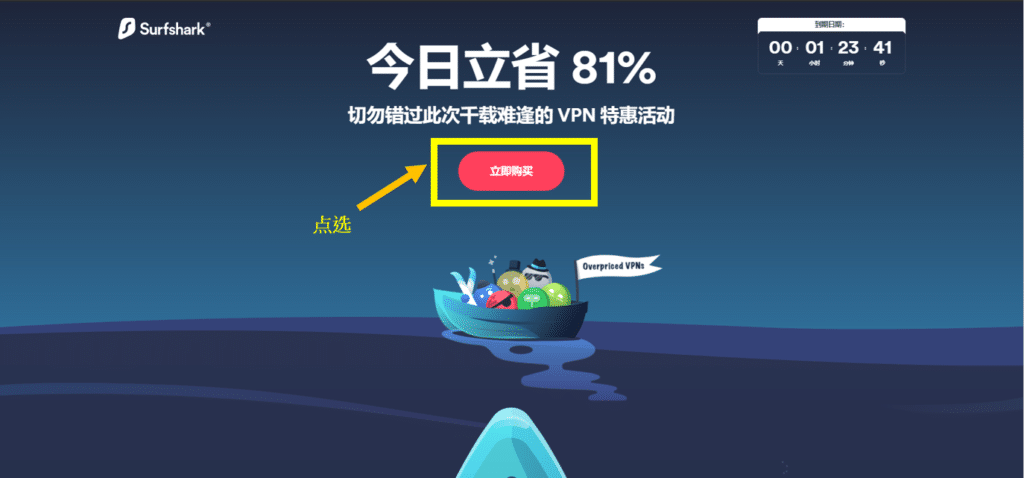
Step 1: Visit the official Surfshark website and click “Buy Now.”
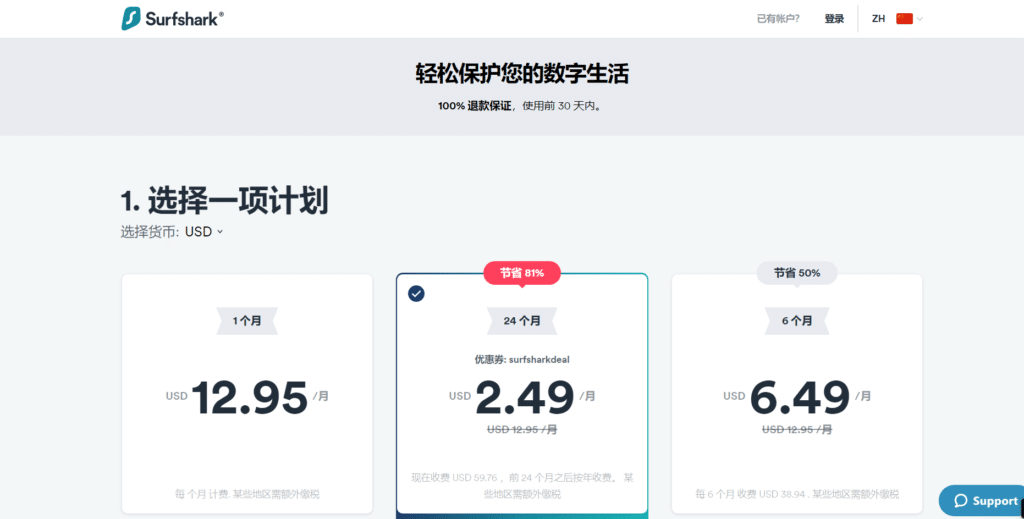
Step 2: Check the live subscription choices. Separate the amount charged today from the displayed monthly equivalent and renewal. Long plans can lower the monthly equivalent but require a larger upfront payment. Save the refund deadline and cancellation instructions before completing checkout.
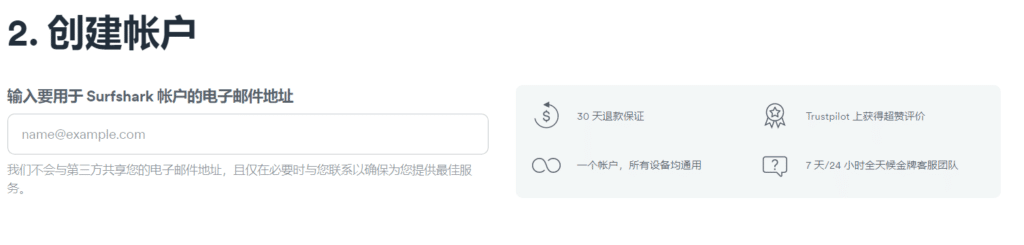
Step 3: Create your Surfshark account: Enter your email address. There’s no need to worry about your information being leaked.
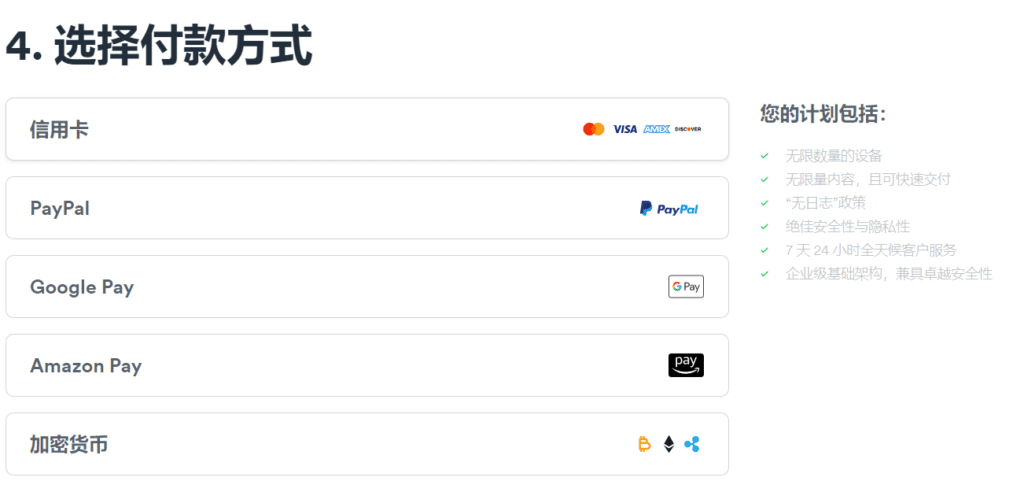
Step 4: Select your preferred payment method:
Available options include:
- Mastercard / Visa
- PayPal
- Google Pay
- Amazon Pay
- Cryptocurrency
After completing the payment, Surfshark will send you the account information, and you can set your password.
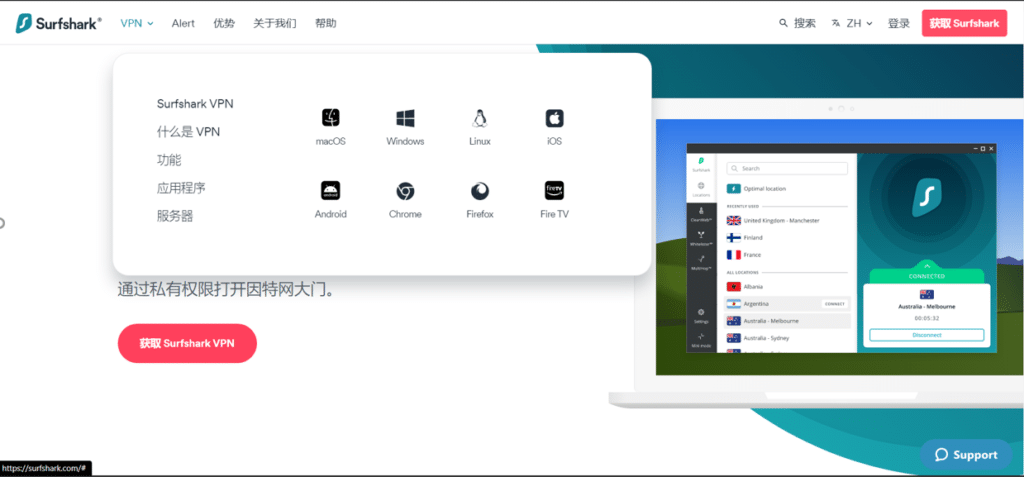
Step 5: Download Surfshark for your device:
After payment, go to the Surfshark homepage and download the app for your system: macOS, Windows, Linux, iOS, or Android.
Open the installer and complete the setup.
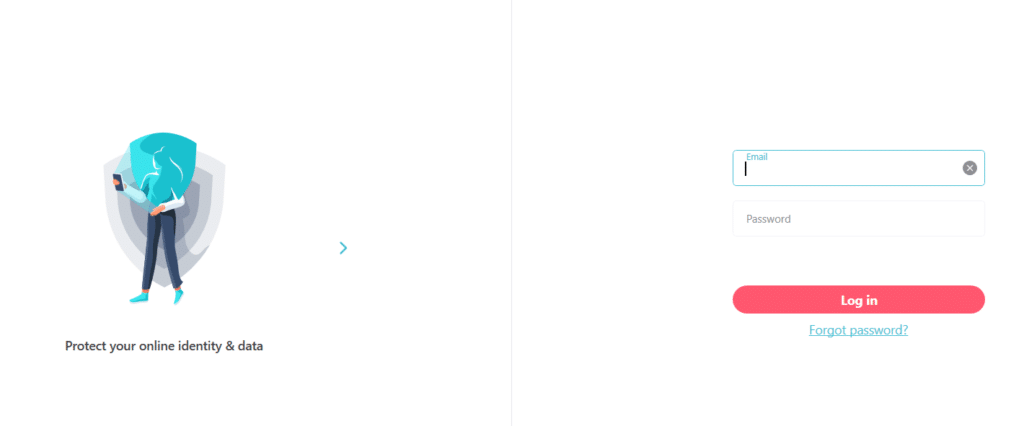
Step 6: Log in and start using Surfshark: Once installed, enter your account credentials. You can now enjoy the full Surfshark VPN service across all supported devices.
Surfshark FAQ
Can Surfshark Be Used in Restrictive Network Environments?
Yes. Surfshark can work in regions with heavy internet restrictions.
While occasional instability may happen (as with all VPN providers), Surfshark actively maintains technologies designed to overcome network blocks and ensure secure access. Key features include:
1 NoBorders Mode
Surfshark’s NoBorders mode automatically activates when the app detects a restricted network environment.
This mode provides a special list of servers optimized for difficult network conditions, helping users maintain stable access.
2 Kill Switch
Surfshark includes a built-in Kill Switch.
If the VPN connection drops unexpectedly, the Kill Switch immediately cuts your internet connection to prevent IP or data leaks.
3 RAM-Only Servers (Volatile Memory Architecture)
Surfshark runs 100% RAM-only servers, meaning:
- No hard-drive storage
- No permanent logs
- All data is wiped when servers reboot
This ensures stronger privacy protection and reduces long-term data exposure.
4 Strict No-Logs Policy
Surfshark operates under a verified no-logs policy.
This means:
- No tracking of browsing history
- No recording of IP addresses
- No monitoring of connection timestamps
Only minimal temporary data is kept to maintain your active session, and it is immediately deleted after use.
5 OpenVPN Camouflage Mode
Surfshark’s Camouflage mode (OpenVPN obfuscation) masks VPN traffic so it appears like normal HTTPS traffic.
This helps avoid network filtering or DPI (deep packet inspection) systems that look for traditional VPN signatures.
Surfshark Cons (Drawbacks)
1 Unstable P2P Performance
Although Surfshark claims to support torrenting across most of its servers, my own tests show that P2P speeds can be inconsistent. At times, torrent downloads were significantly slower than expected. In certain cases, I had to use app-level split tunneling (Whitelister) to bypass the Surfshark connection entirely just to restore normal torrent speeds. If heavy torrenting is part of your routine, this is something to consider.
2 Weak Social Media Presence
Unlike many major VPN providers that maintain strong, active social media channels (such as ExpressVPN and StrongVPN), Surfshark’s online presence appears comparatively limited. Their Twitter account is rarely updated, and their Facebook page also shows minimal activity. While this does not necessarily reflect the quality of their VPN service, some users may view it as a lack of community engagement or customer transparency.
3 Customer Support Accuracy Issues
Surfshark offers 24/7 live chat support and email assistance, and their response times are indeed fast. However, the accuracy of their answers can sometimes be questionable. In my personal experience, certain staff members did not fully understand technical details. For example, I once asked about VPN protocols on Windows, and the representative incorrectly claimed that the Windows app always defaults to IKEv2 — which was not true. While support is friendly and responsive, the technical depth can be inconsistent.
How to Set Up Surfshark on macOS (2026 Updated Guide)
Once you’ve completed the payment process described above, you can proceed with installing Surfshark on your Mac. The macOS installation is straightforward and suitable even for beginners. You may download Surfshark directly from the official website or through the Mac App Store.
Step 1 — Download Surfshark for macOS
Go to the Surfshark official website and download the macOS version of the application.
Alternatively, open the App Store, search for “Surfshark VPN”, and download the app directly.
Once downloaded, the app will automatically begin installation. When the installation completes, click Open.
Step 2 — Log in to Your Surfshark Account: Launch the Surfshark app.
Enter the email address and password you used when creating your account.
Click Log In to access the dashboard.
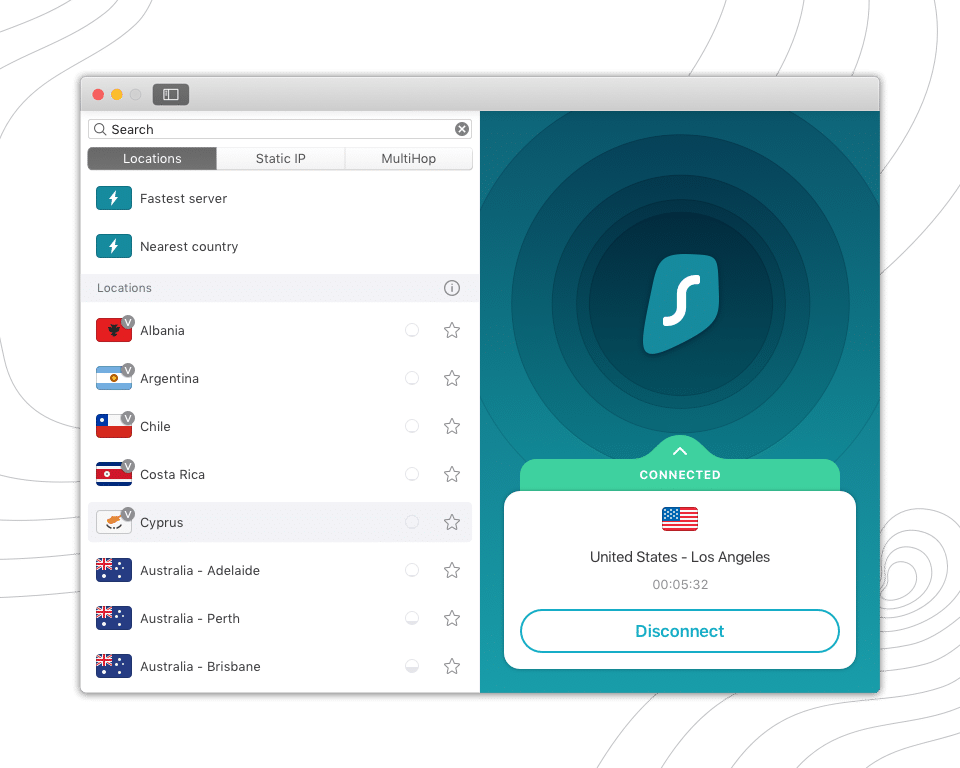
Step 3 — Start Using Surfshark on macOS。After logging in, you’ll see the main interface.
Initially, Surfshark will show a Not Connected status.
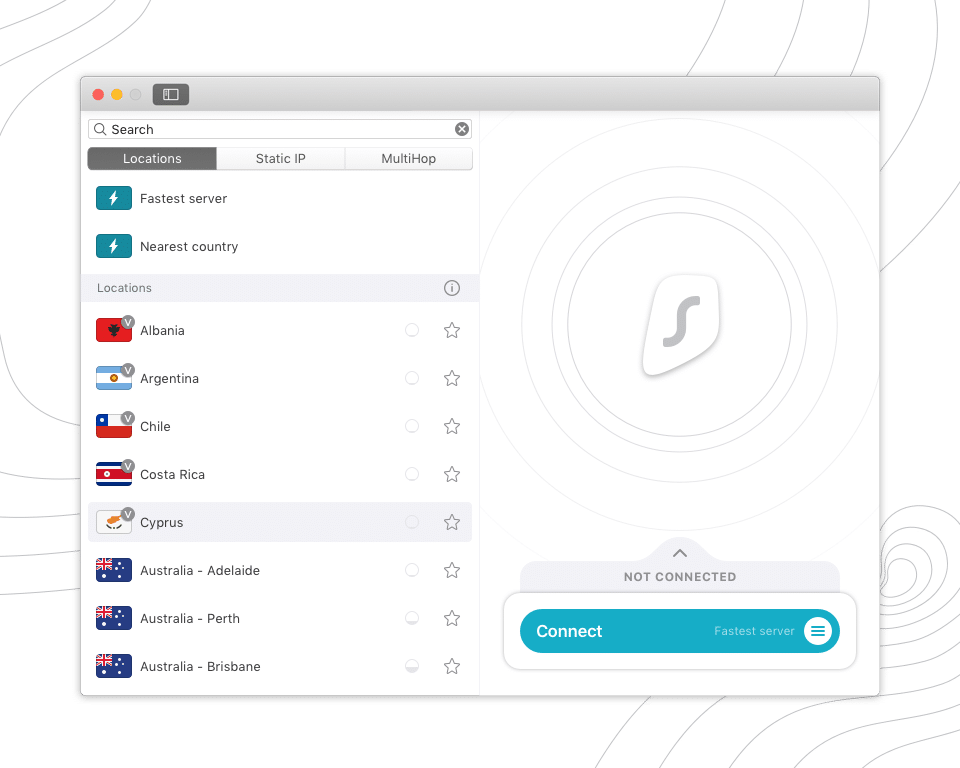
Step 4 — Connect to a Server: Click Connect.
Once the connection is successful, the button will change to Disconnect, indicating that your VPN is active and your traffic is now protected.
That’s it—your Surfshark macOS setup is complete. You can now enjoy secure browsing, streaming, and regional access to global content.
How to Set Up Surfshark VPN on iOS (iPhone & iPad)
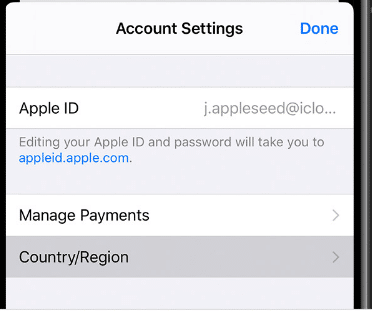
If your iPhone region is already set to a supported country—or if you are currently outside the restricted regions—you can simply download Surfshark directly from the App Store or from Surfshark’s official website. However, if the Surfshark app is not available in your App Store region, you may need to switch your App Store location before installation.
Once the app is installed, follow the steps below to set up Surfshark on your iOS device.
Step 1 — Download Surfshark
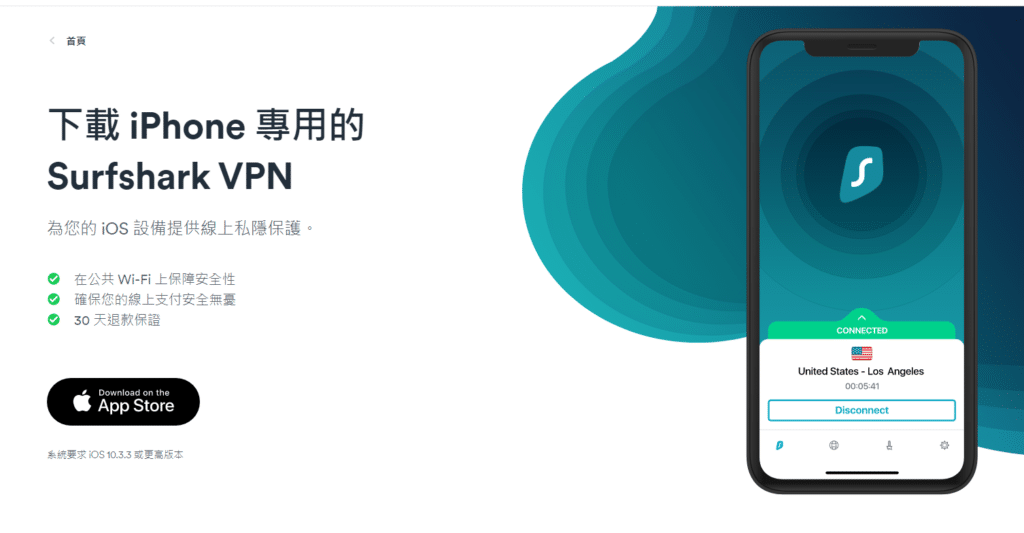
Download the Surfshark app either from the App Store or directly from Surfshark’s official website (use the black “Download” button on their iOS page).
Once the app finishes downloading, tap Open to begin installation.
Step 2 — Log in to Your Account
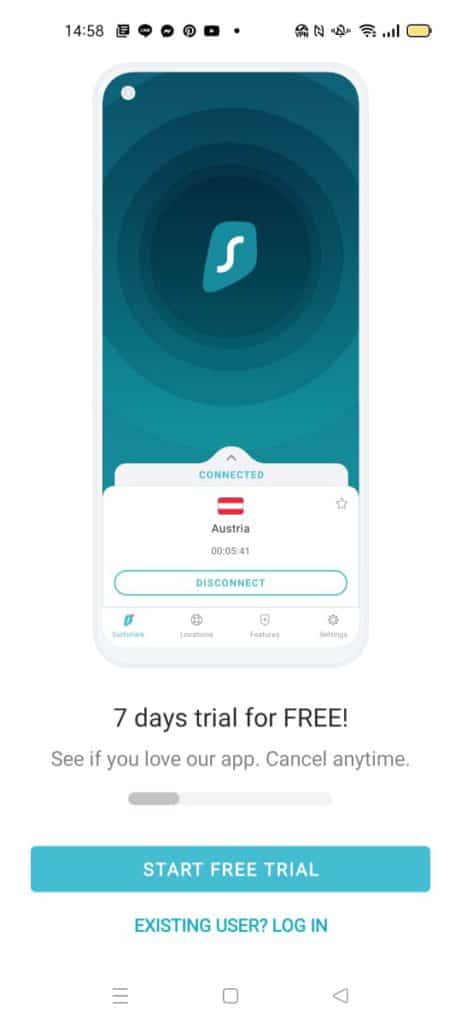
After launching the app, tap Existing user.
Enter the email and password you used when creating your Surfshark account.
Step 3 — Connect to Surfshark
Once logged in, you will see the main connection screen.
Tap Connect to automatically connect to the fastest available server.
When the connection is successful, the button will turn into Disconnect, indicating that your Surfshark VPN is now active and protecting your internet traffic.
That’s it — your iPhone is now secured, encrypted, and connected to Surfshark’s global VPN network.
How to Set Up Surfshark VPN on Android (2026 Updated Guide)
Installing and using Surfshark on Android is very straightforward. Follow the steps below to get Surfshark running smoothly on your Android phone or tablet.
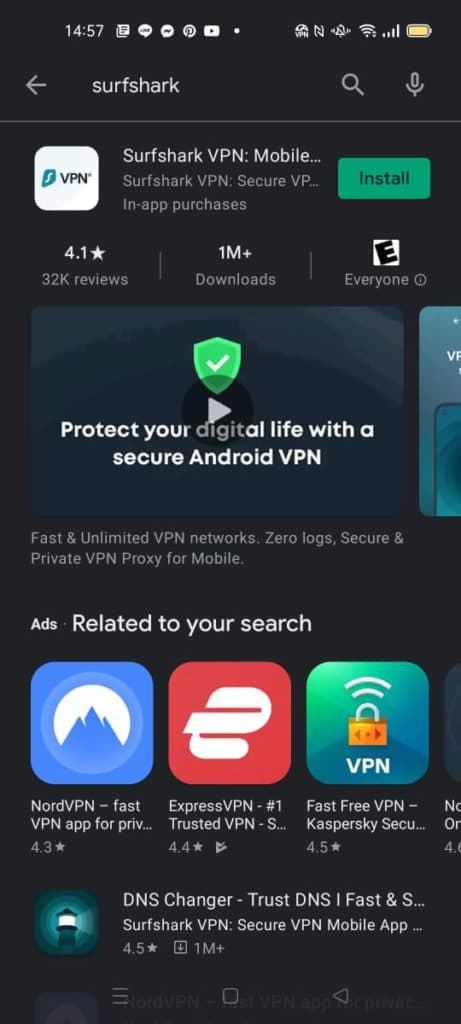
Step 1: Download Surfshark from Google Play
To start using Surfshark on your Android device, simply download the app from the Google Play Store.
- Open Google Play Store
- Search for “Surfshark VPN”
- Tap Install
Once the installation is complete, tap Open to launch the app.
Step 2: Log In With Your Surfshark Account
After opening the Surfshark app:
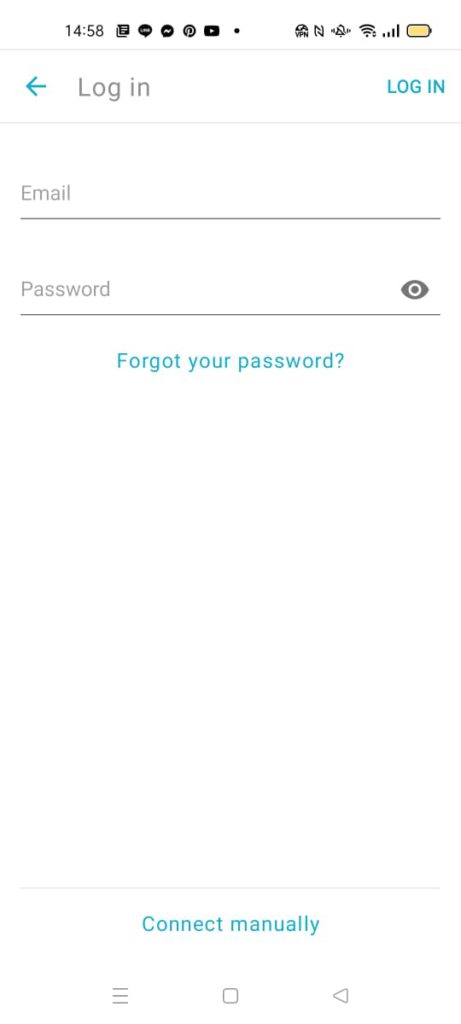
- Tap Existing user
- Enter the email address and password you used during sign-up
- Tap Log In
You will be taken to the main dashboard of the Surfshark app.
Step 3: Connect to a VPN Server
Once you’re logged in:
- Tap the Connect button
- Surfshark will automatically connect you to the fastest available server
- When the connection is successful, the button will switch to Disconnect
If you prefer selecting locations manually:
- Tap Locations
- Choose any country or city server you want
That’s it — Surfshark is now fully set up on your Android device.
How to Set Up Surfshark VPN on Linux (2026 Updated Guide)
Setting up Surfshark VPN on Linux is easier than most people think. While the graphical desktop version works just like on Windows and macOS, Linux users can also install Surfshark using the command-line interface (CLI), which provides better control, faster performance, and higher reliability.
1. Install Surfshark VPN on Linux
If your Linux distro includes a graphical interface, you can simply download and install Surfshark from the official website.
For users who prefer the terminal (or have no GUI installed), use the following commands. Update your system: sudo apt-get update
Step 2 — Install Surfshark VPN
sudo apt-get install surfshark-vpn
After installation, you’re ready to connect.
3 Log in to Surfshark Run the login command: sudo surfshark-vpn login
Enter the email and password you used during signup.
4 Connect to a Surfshark VPN Server,To view all available server locations: sudo surfshark-vpn locations
To connect, simply enter the number corresponding to your preferred country or region: sudo surfshark-vpn
Pick a number → Surfshark connects instantly.
5 Disconnect from Surfshark: sudo surfshark-vpn down
| Action | Command |
|---|---|
| Help / list all commands | sudo surfshark-vpn help |
| Check connection status | sudo surfshark-vpn status |
| Best server connection | sudo surfshark-vpn attack (auto-connect to fastest option) |
| Log out | sudo surfshark-vpn forget |
| Uninstall Surfshark | sudo apt-get remove surfshark-vpn |
More details & official reference
Surfshark also provides a full walkthrough video for visual learners:
Surfshark Review Summary (2026 Updated)
Surfshark is most useful to compare when one household needs many simultaneous connections. The better test is not an old promotional percentage: compare the first charge, renewal, app support, connection recovery and the exact services used on each device.
- High Security & Privacy Protection: Surfshark is operated by a reputable non-Chinese international cybersecurity company. It offers strong AES-256 encryption, RAM-only servers, audited no-logs policy, and advanced privacy features.
- Stable & Reliable Connections: Connection performance remains consistently smooth across major regions, even under restrictive networks.
- Good Speeds for Daily Use: While not always as fast as ExpressVPN in every region, Surfshark provides solid speeds for streaming, browsing, and general usage.
- Large Global Network: Surfshark offers a wide selection of servers in many countries, allowing users to access global content easily and flexibly.
- Extremely Easy to Use: Its one-click connection design makes Surfshark suitable even for beginners. No complicated setup required.
- Strongest Set of Privacy Features: Including Kill Switch, NoBorders mode, Camouflage mode (obfuscation), CleanWeb ad-blocker, and DNS leak protection.
- Unlimited Device Connections: Unlike most VPNs that limit you to 5–10 devices, Surfshark allows unlimited simultaneous connections under one account, which is useful for families or multi-device users.
- Broad Compatibility: Supports Windows, macOS, iOS, Android, Linux, smart TVs, browser extensions, and even routers.
- 24/7 Customer Support (Including Multilingual): Live chat is available anytime. Support quality varies occasionally, but response times are fast.
- Refund terms: confirm the current eligibility, deadline and cancellation route before paying.
- Multiple Payment Options: Supports credit cards, PayPal, Google Pay, Amazon Pay, and cryptocurrencies.
- Fair Pricing & Good Value: Given its unlimited devices + full features + low long-term pricing, Surfshark offers one of the highest cost-performance ratios on the market.
Surfshark VPN Setup Guide (Includes Latest 2026 Discounts)
Do not judge Surfshark from the displayed monthly equivalent alone. Compare the upfront term, renewal, refund eligibility and official apps, then repeat the same connection and playback test on every important device.
Whether you need a VPN for privacy, streaming, gaming, or regional access while traveling, Surfshark offers a powerful all-around solution. In this guide, you’ll find:
- Why Surfshark is recommended
- Surfshark's current checkout and renewal terms
- Step-by-step payment and setup instructions
- Installation tutorials for macOS, Windows, iOS, Android, and Linux
- Real-world performance notes
- Pros, cons, FAQ, and final recommendations
This guide is designed to help you quickly install Surfshark on any device and make the most out of its features—no technical background required.